
Deploy Service - Documentation for Control-M Automation Api 9.0.21.125

The Deploy Service Allows You to Transfer Job and Configuration Definitions to Control-M. Once a Job Is Deployed, It Will Be Scheduled by Control-M According...
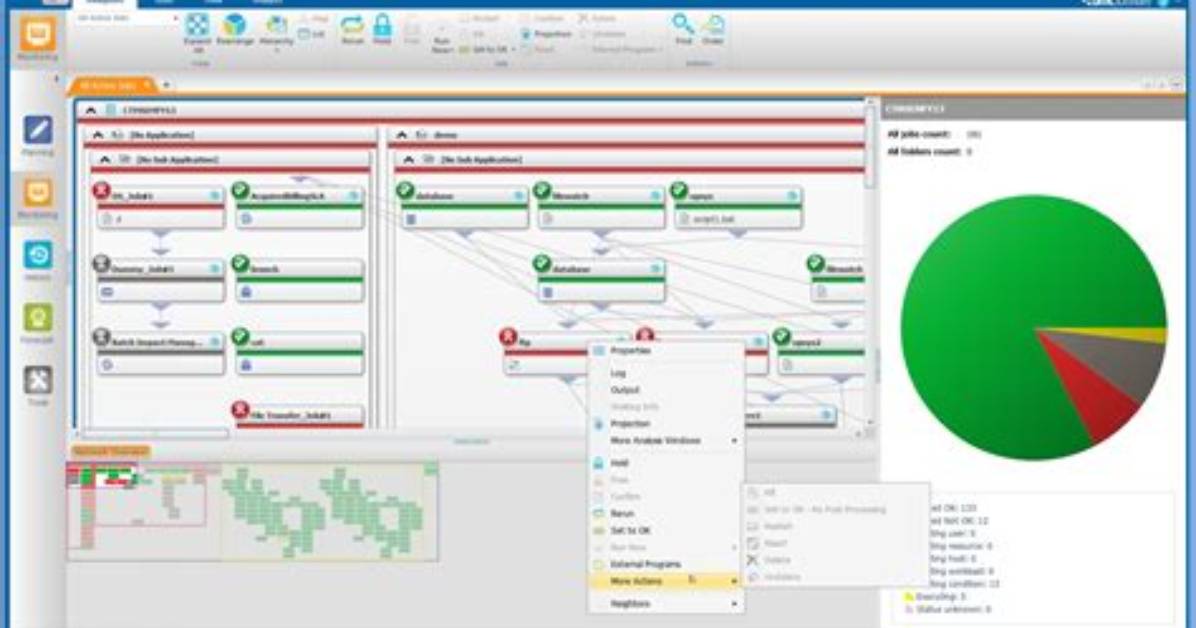
The deploy service allows you to transfer job and configuration definitions to Control-M. Once a job is deployed, it will be scheduled by Control-M according to its scheduling criteria and dependencies. The deploy overwrites any existing definition of the same name.
Jobs, Folders, and Calendars
The following API commands relate to the deployment of jobs, folders, calendars, and site standards.
Note: To deploy Site Standards, you must have Control-M/Enterprise Manager version 9.0.21 and you must have the Control-M Workload Change Manager add-on installed.
deploy
Deploy the provided definitions file to Control-M. As part of the deploy, a build takes place to ensure code validity. deploy can receive definitions files for folders, jobs, calendars, and site standards in .json format or Control-M import/export .xml format, or a package of multiple definition files in .zip or .tar.gz format.
CLI Syntax
CLI
ctm deploy <definitionsFile> [deployDescriptorFile] [StandardsFile]Parameter | Description |
|---|---|
<definitionsFile> | The definitions file name Valid file formats are: |
[deployDescriptorFile] | (Optional) The file that includes the rules to apply on the original definitionsFile. The rules enable transforming Control-M JSON code properties. For detailed information, see Deploy Descriptor. |
| StandardsFile | (Optional) The .json file that contains the site standards that apply to the Control-M environment. For detailed information, see Site Standards. |
If annotation is enabled for the Scheduling definitions, Configuration management, or Control-M security category in Control-M, you must also provide an annotation to justify your action. For more information, see Annotation input.
REST API Syntax
See REST API reference.
Example using curl:
curl -H "Authorization: Bearer $token" -X POST  -F "definitionsFile=@examples/AutomationAPISampleFlow.json"
-F "deployDescriptorFile=@examples/deployDescriptor.json"
-F "StandardsFile=@examples/StandardsFile.json"  "$endpoint/deploy"
Response
The response to the deploy command is the same as the response to the build command. The response summarizes the numbers of various elements created (such as folders and jobs), indicates whether a Deploy Descriptor is applied, and provides validation messages if site standards are applied.
Note: If validations are not strictly enforced, site standard warning messages are not included, by default, in the deploy command response. To activate the inclusion of warning messages in the response, add the deployWarningsEnabled property to the automation-api.properties file, and set it to true.
deploy poll
Note: This feature requires Control-M/Enterprise Manager version 9.0.21.
If deployment takes longer than expected to update the Control-M database server, the response returns a poll ID and a deployment status. This occurrence is called an asynchronous deployment, and enables you to continue working while the asynchronous deployment continues in the background. To get an update of the deployment status, run the deploy poll command. Any user that has the required privileges can run the deploy poll command.
NOTE: It is highly unlikely for a deploy response to take so long that that asynchronous deployment is activated. The asynchronous deployment times out after 10 minutes. To change the timeout length, contact support.
CLI Syntax
CLI
ctm deploy poll <pollId>REST API Syntax
See REST API reference.
Example using curl:
curl -H "Authorization: Bearer $token" "$endpoint/deploy/poll?pollId"Example
In the following example, a definitions file that contains 5000 jobs is deployed—5 folders of 1000 jobs each. The response shows only 250 jobs have been deployed, so the deployment status is partial and a poll ID is provided:
{
    "deploymentFile": "5000_jobs_async_deploy.json",
    "pollId": "98b565da-eff8-4d78-881e-778b97944229",
    "deploymentStatus": "PARTIAL_RESULT",
    "successfulFoldersCount": 0,
    "successfulSmartFoldersCount": 0,
    "successfulSubFoldersCount": 0,
    "successfulJobsCount": 250,
    "successfulConnectionProfilesCount": 0,
    "successfulDriversCount": 0,
    "isDeployDescriptorValid": false
}
Parameter | Description |
|---|---|
| deploymentFile | The name of the definitions file |
| pollId | A unique Id to monitor the status of the deployment |
deploymentStatus | The status of the deployment. Possible values:
|
| successfulFoldersCount | Number of simple folders deployed |
| successfulSmartFoldersCount | Number of SMART folders deployed |
| successfulSubFoldersCount | Number of subfolders deployed |
| successfulJobsCount | Number of jobs deployed |
| successfulConnectionProfilesCount | Number of connection profiles deployed |
| successfulDriversCount | Number of JDBC drivers deployed |
| isDeployDescriptorValid | Confirms if the deploy descriptor in the definitions file deployed. For detailed information, see Deploy Descriptor . Values: true | false |
The following example shows the response shortly after deploy. Notice that 2 Smart folders, or 2000 jobs, have deployed:
{
  "deploymentFile": "1000_jobs_async_deploy.json",
  "pollId": "98b565da-eff8-4d78-881e-778b97944229",
  "deploymentState": "DEPLOYED_CALENDARS, DEPLOY FOLDERS 2/5",
  "deploymentStatus": "PARTIAL_RESULT",
  "successfulFoldersCount": 0,
  "successfulSmartFoldersCount": 2,
  "successfulSubFoldersCount": 0,
  "successfulJobsCount": 2000,
  "successfulConnectionProfilesCount": 0,
  "successfulDriversCount": 0,
  "successfulCalendarsCount": 1,
  "isDeployDescriptorValid": false,
  "deployedFolders": [
    "BigFolder1",
    "BigFolder2"
  ],
  "deployedCalendars": [
    "PeriodicCalendarForRun"
  ]
}
Parameter | Description |
|---|---|
| deploymentState | Describes what has already been deployed. Possible values:
|
| deployedFolders | An array of the folder names that deployed |
| deployedCalendars | An array of the calendar names that deployed |
After running the ctm deploy poll command again a few minutes later, notice that all the jobs have deployed successfully:
{
  "deploymentFile": "1000_jobs_async_deploy.json",
  "pollId": "98b565da-eff8-4d78-881e-778b97944229",
  "deploymentState": "DEPLOYED_CALENDARS, DEPLOY FOLDERS 5/5",
  "deploymentStatus": "ENDED_OK",
  "successfulFoldersCount": 0,
  "successfulSmartFoldersCount": 5,
  "successfulSubFoldersCount": 0,
  "successfulJobsCount": 5000,
  "successfulConnectionProfilesCount": 0,
  "successfulDriversCount": 0,
  "successfulCalendarsCount": 1,
  "isDeployDescriptorValid": false,
  "deployedFolders": [
    "BigFolder1",
    "BigFolder2",
    "BigFolder3",
    "BigFolder4",
    "BigFolder5"
  ],
  "deployedCalendars": [
    "PeriodicCalendarForRun"
  ]
}
deploy transform
The transform command enables you to apply the rules of the deployDescriptorsFile to the original definitionsFile. The rules define the method to use that change the values of the JSON code properties in the original definitionsFile.
CLI Syntax
CLI
ctm deploy transform <definitionsFile> <deployDescriptorFile>Where:
Parameter | Description |
|---|---|
<definitionsFile> | The file or archive that contains code for jobs. Valid formats are:
|
| <deployDescriptorFile> | The file that includes the rules to apply on the original definitionsFile. The rules enable transforming Control-M JSON code properties. For detailed information, see Deploy Descriptor. |
REST API Syntax
See REST API reference.
curl -H "Authorization: Bearer $token" -X POST  -F "definitionsFile=@examples/AutomationAPISampleFlow.json"
-F "deployDescriptorFile=@examples/deployDescriptor.json"  "$endpoint/deploy/transform"
deploy jobs::get
Returns the definition of jobs and folders in the requested format that match the search criteria.
CLI Syntax
CLI
ctm deploy jobs::get [format] -s <search query>Parameter | Description |
|---|---|
format | The format in which to return the output, one of the following:
|
-s is used to run a search using the query string format. The following table includes the fields that can be used in the search query:
| Field | Criteria | Criteria example |
|---|---|---|
|
Note:
| server=*&folder=* server=*&folder=Auto* server=workbench&folder=AutomationAPISampleFlow server=LocalControlM&folder=folder1:subfolder2 server=LocalControlM&folder=folder1&job=myJob |
| useArrayFormat | 9.0.21.035Enforces the display of jobs in an array format under a Jobs object, instead of displaying each job separately under an object that bears the name of the individual job. This array format enables you to define more than one job with the same job name. For examples of the job array structure, see the examples in Folder. The useArrayFormat field enforces the job array structure even when all returned jobs have distinct names (and no job name is used by more than one job). Values: true|false Default: false (the array format is used only if multiple jobs with the same name are detected) | server=*&folder=*&useArrayFormat=true |
For example, the following command shows how to get a job in a JSON format for all the folders that start with Automation:
ctm deploy jobs::get -s "server=*&folder=Automation*"REST API Syntax
See REST API reference.
>curl -k  -H "Authorization: Bearer $token"  "$endpoint/deploy/jobs?server=*&folder=Auto*"

>curl -k  -H "Authorization: Bearer $token"  "$endpoint/deploy/jobs?server=*&folder=Auto*&format=XML"

>curl -k  -H "Authorization: Bearer $token"  "$endpoint/deploy/jobs?server=*&folder=Auto*&useArrayFormat=true"
deploy job::delete
9.0.21.000Enables you to delete a job from an existing folder.
CLI Syntax
CLI
ctm deploy job::delete <jobPath> [server] [library]Parameter | Description |
|---|---|
Specifies the full path of the job to delete. Use colons as separators between folder, subfolder, and job. Example: SMART_FOLDER_1:SMART_FOLDER_2:job_to_delete | |
| server | Specifies the Control-M/Server. Mandatory unless there is only one Control-M/Server in the system. |
| library | (z/OS only) Specifies the name of the z/OS library. |
REST API Syntax
See REST API reference.
endpoint=
token=
server=LocalControlM
jobpath=SMART_FOLDER_1:SMART_FOLDER_2:job_to_delete
curl -X DELETE -H "Authorization: Bearer $token"  "$endpoint/deploy/job/$server/$jobpath"
deploy folder::delete
Enables you to delete a folder.
CLI Syntax
CLI
ctm deploy folder::delete <server> <folderName> [library]Parameter | Description |
|---|---|
<server> | Defines the name of the Control-M/Server. |
| <folderName> | Defines the name of the folder to delete. |
| library | (z/OS only) Defines the name of the z/OS library. |
If annotation is enabled for the Scheduling definitions category in Control-M, you must also provide an annotation to justify your action. For more information, see Annotation input.
REST API Syntax
See REST API reference.
endpoint=
token=
server=
folder=
curl -X DELETE -H "Authorization: Bearer $token"  "$endpoint/deploy/folder/$server/$folder"
deploy subfolder::delete
Enables you to delete a subfolder and all jobs under the subfolder.
CLI Syntax
CLI
deploy subfolder::delete <subFolderPath> [server] [library]Parameter | Description |
|---|---|
<subFolderPath> | Specifies the full path of the subfolder to delete. Use a colon to separate the parent folder from subfolders. |
| server | Specifies the Control-M/Server. Mandatory unless there is only one Control-M/Server in the system. |
| library | (z/OS only) Specifies the name of the z/OS library. |
REST API Syntax
See REST API reference.
endpoint=
token=
server=
subfolderpath=
curl -X DELETE -H "Authorization: Bearer $token"  "$endpoint/deploy/subfolder/$server/$subfolderpath"
deploy calendars::get
Returns the definitions of calendars based on specified search criteria.
Calendars are used to set scheduling criteria that you can apply to multiple jobs, instead of having to define scheduling criteria in each individual job. For information about defining calendars and calendar scheduling parameters, see Calendars.
CLI Syntax
CLI
ctm deploy calendars::get [limit] -s <search query>Parameter | Description |
|---|---|
limit | Maximum number of calendars to include in the response. The default is 10000. |
Use the required -s option to specify a query string to search for. The following table lists the fields that can be used in the search query:
| Field | Criteria | Criteria examples |
|---|---|---|
|
| name=* name=*&server=auto* name=S1,S2&server=* |
REST API Syntax
See REST API reference.
endpoint=
token=
curl -X GET -H "Authorization: Bearer $token"  "$endpoint/deploy/calendars/?type=Periodic&name=S*"
deploy calendar::delete
Deletes a defined calendar.
CLI Syntax
CLI
ctm deploy calendar::delete <calendarName> [serverName]Parameter | Description |
|---|---|
| <calendarName> | Name of the defined calendar |
[serverName] | Name of the Control-M/Server If not specified, it is assumed that you want to delete a global calendar. |
If annotation is enabled for the Scheduling definitions category in Control-M, you must also provide an annotation to justify your action. For more information, see Annotation input.
REST API Syntax
See REST API reference.
endpoint=
token=
calendar=
server=
curl -X DELETE -H "Authorization: Bearer $token"  "$endpoint/deploy/calendar/$calendar?server=$server"
Must Read
Connection Profiles
The following API commands relate to the deployment of connection profiles.
deploy connectionprofiles:centralized::get
Returns the full definitions of centralized connection profiles, based on specified search criteria.
Centralized connection profiles are stored centrally in the Control-M database and can be used by all your Control-M/Agents. Definitions for such connection profiles contain the Centralized parameter set to true.
CLI Syntax
CLI
ctm deploy connectionprofiles:centralized::get -s <search query>Use the required -s option to specify a query string to search for. The following table lists the fields that can be used in the search query:
| Field | Description | Criteria examples |
|---|---|---|
| type | Type of connection profile, one of the following options:
For all types, use an asterisk *. | type=Hadoop&name=myCP type=*&name=hd* |
name | Name of connection profile(s). Supported wildcards are * (asterisk) and ? (question mark). For multiple values, use commas between values. The default is * (all). |
REST API Syntax
See REST API reference.
endpoint=
token=
name=
type=
curl -X GET -H "Authorization: Bearer $token"  "$endpoint/deploy/connectionprofiles/centralized/?type=$type&name=$name"
deploy connectionprofiles:centralized:status::get
Returns a summary of details for centralized connection profiles (including basic properties and metadata, and the current deployment status), based on specified search criteria.
Centralized connection profiles are stored centrally in the Control-M database and can be used by all your Control-M/Agents. Definitions for such connection profiles contain the Centralized parameter set to true.
CLI Syntax
CLI
ctm deploy connectionprofiles:centralized:status::get <limit> -s <search query>Parameter | Description |
|---|---|
limit | Maximum number of connection profiles to include in the response. |
Use the required -s option to specify a query string to search for. The following table lists the fields that can be used in the search query:
| Field | Description | Criteria examples |
|---|---|---|
| type | Type of connection profile, one of the following options:
For all types, use an asterisk *. | type=Hadoop&name=myCP type=*&name=hd* |
name | Name of connection profile(s). Supported wildcards are * (asterisk) and ? (question mark). For multiple values, use commas between values. The default is * (all). |
REST API Syntax
See REST API reference.
endpoint=
token=
name=
type=
curl -X GET -H "Authorization: Bearer $token"  "$endpoint/deploy/connectionprofiles/centralized/status/?type=$type&name=$name&limit=50"
deploy connectionprofile:centralized::deploymentstatus
Returns deployment status information for a centralized connection profile.
CLI Syntax
CLI
ctm deploy connectionprofile:centralized::deploymentstatus <type> <name>Parameter | Description |
|---|---|
| <type> | Type of connection profile, one of the following:
|
| <name> | Name of the connection profile |
REST API Syntax
See REST API reference.
endpoint=
token=
type=
name=
curl -X GET -H "Authorization: Bearer $token"  "$endpoint/deploy/connectionprofile/centralized/$type/$name/deploymentstatus"
deploy connectionprofile:centralized::delete
Deletes a centralized connection profile from the Control-M database.
CLI Syntax
CLI
ctm deploy connectionprofile:centralized::delete <type> <name>Parameter | Description |
|---|---|
| <type> | Type of connection profile, one of the following:
|
| <name> | Name of the connection profile |
If annotation is enabled for the Control-M security category in Control-M, you must also provide an annotation to justify your action. For more information, see Annotation input.
REST API Syntax
See REST API reference.
endpoint=
token=
type=
name=
curl -X DELETE -H "Authorization: Bearer $token"  "$endpoint/deploy/connectionprofile/centralized/$type/$name"
deploy connectionprofiles:local::get
Returns the details of local connection profiles associated with your Control-M/Agents, based on specified search criteria.
CLI Syntax
CLI
ctm deploy connectionprofiles:local::get -s <search query>Use the required -s option to specify a query string to search for. The following table includes the fields that can be used in the search query:
| Field | Criteria | Criteria example |
|---|---|---|
|
Note: The server field was previously named ctm (deprecated name). | server=workbench&agent=agent&type=Database |
REST API Syntax
See REST API reference.
endpoint=
token=
server=
agent=
type=
curl -X GET -H "Authorization: Bearer $token"  "$endpoint/deploy/connectionprofiles/local/?server=$server&agent=$agent&type=$type"
deploy connectionprofile:local::delete
Deletes a local connection profile that was associated with a Control-M/Agent.
CLI Syntax
CLI
ctm deploy connectionprofile:local::delete <server> <agent> <type> <name>Parameter | Description |
|---|---|
<server> | Name of Control-M/Server |
| <agent> | Host name or alias of the Control-M/Agent. This is the logical name of the Control-M/Agent |
| <type> | Type of connection profile, one of the following:
|
| <name> | Name of the connection profile |
If annotation is enabled for the Control-M security category in Control-M, you must also provide an annotation to justify your action. For more information, see Annotation input.
REST API Syntax
See REST API reference.
endpoint=
token=
server=
agent=
type=
name=
curl -X DELETE -H "Authorization: Bearer $token"  "$endpoint/deploy/connectionprofile/local/$server/$agent/$type/$name"
deploy connectionprofile::test
Tests the definitions of a connection profile (without deploying it) on a specific Control-M/Server and Control-M/Agent. You provide the definitions of the connection profile through a JSON-format definitions file.
CLI Syntax
CLI
ctm deploy connectionprofile::test <definitionsFile> [ctm] [agent]Parameter | Description |
|---|---|
| definitionsFile | Name of the JSON-format definitions file |
ctm | Name of Control-M/Server This parameter is required for a centralized connection profile. It is not required for a local connection profile (which is already associated with a specific Control-M/Server). |
| agent | Host name or alias of the Control-M/Agent. This is the logical name of the Control-M/Agent This parameter is required for a centralized connection profile. It is not required for a local connection profile (which is already associated with a specific Control-M/Agent). |
REST API Syntax
See REST API reference.
endpoint=
token=
ctm=
agent=
curl -H "Authorization: Bearer $token" \
  -X POST "$endpoint/deploy/connectionprofile/test?ctm=$ctm&agent=$agent" \
  -F "definitionsFile=@/C:/myConnectionProfile.json"
Chloe Bennett explores the intersection of pop culture, streaming entertainment, digital trends, and contemporary lifestyle. Her weekly commentary reaches thousands of culture enthusiasts.
