
Discovering Data Dictionaries - Documentation for Bmc Helix Data Manager 21.05

Discovery Is the Process by Which Bmc Helix Data Manager Gathers Information from the Ar System Data Dictionary. to Perform Accurate Data Migrations Between...
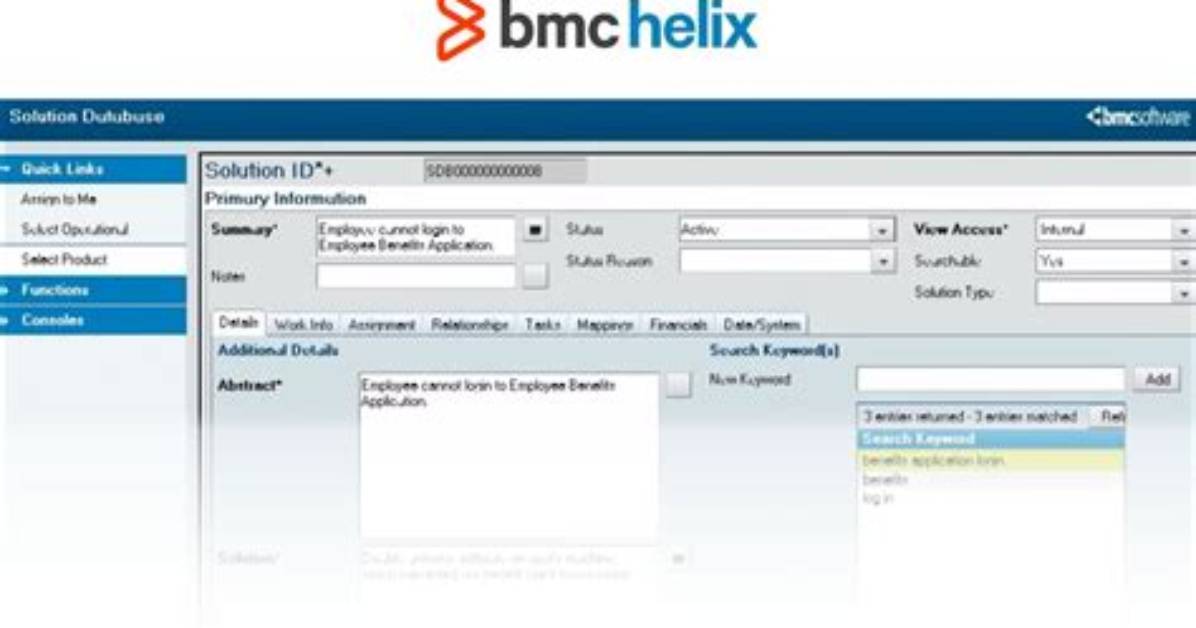
Discovery is the process by which BMC Helix Data Manager gathers information from the AR System data dictionary. To perform accurate data migrations between source and target systems, it is important to understand the data models of those systems, including any customizations that have been applied. The example below shows discovery for an AR System server.
BMC Helix Data Manager Engine executes the discovery job and creates a snapshot of a source or target system that is called a data dictionary, the following data is held in a data dictionary:
Data | Description |
|---|---|
Forms | A list of all forms containing database-managed data in the system is included. |
Fields | All fields for all extracted forms. |
Indexes | All indexes for all forms. Indexes are used to help identify which fields may be being used as foreign keys. |
Relationships | The data relationships between the forms that workflow describes. For example, a menu that holds a list of companies creates a relationship between the company form and the form and field to which the menu is attached. |
Modules | While not directly used by BMC Helix Data Manager when performing analysis and data migrations, the metadata regarding the data dictionaries for each of the modules in use can be helpful when comparing applications or when identifying the correct migration pack to be used. |
Discovery is an essential step when setting up BMC Helix Data Manager to perform migrations against your source and target sources. Whenever changes are made to a source or target system and affect the data model (for example, adding a new field, removing a field, or changing a field length), you should run discovery to ensure that BMC Helix Data Manager has an accurate understanding of the data model. However, if you are applying a patch that only changes workflow, it is typically not necessary to run discovery.
To discover the data dictionary
- Trigger discovery of the data dictionary for a registered system by any of the following methods:
- From the Home page, click the image for the server, and select Discover Data Dictionary.
- Select Configuration > Register & Configure Systems from the menu bar. Select the system, and select Action > Discover Data Dictionary.
- From the System Admin page, select the system and select Action > Discover Data Dictionary.
The Set As Current check box is enabled by default. This automatically sets the discovered data dictionary as Current for this system. You can override this flag the System Administration interface. Only the Current data dictionary is available for migration packs.
The Relationships check box is enabled by default. BMC Helix Data Manager views the relationships between the forms and workflow objects. The relationships appear in the data dictionaries that are displayed on the Relationships tab.
The Database Size check box is disabled by default. If the check box is selected, more information is added in the discovery regarding the size of the database tables and their indexes on the disk.
The Workflow check box is disabled by default. If the check box is selected, information about the workflow elements is stored in the repository to help a consultant determine the level of customization on a system. - From the Home page, click the image for the server, and select Discover Data Dictionary.
- Click Discover & Track to automatically open the page to track the progress of the Discovery.
Click Discover to run the discovery without opening the tracking page. - To view the discovered data dictionary, click View Discovery.
Must Read
Viewing a discovered data dictionary
- Drill down on a particular source or target system from the Home page, or select Discovery & Analysis > Discovered Data Dictionaries.
- To select a different data dictionary to explore, click Select at the top of the page.
- For BMC Digital Workplace or BMC Innovation Suite data dictionaries, select the appropriate option from the Dictionary Set list.
- To filter this list, type in the filter fields at the top of each column or sort the list by clicking the column headers. To select the data dictionary you want to explore, click on the table and click Select to confirm the choice.
You can access the following functions from the data dictionary page:
- Select Data Dictionary—Select from the list of data dictionaries to browse the discovered metadata.
- Browse Module—Browse the list of modules registered with the source or target server.
- Browse Forms, Fields & Indexes f Browse Relationships—Browse all forms, fields, and indexes that were discovered from the source or target system.
- Browse Relationships—Browse all relationships between the application's forms and review the data relationships that were inferred from the application's workflow.
- Link Remedy Systems—Associate source or target systems with a data dictionary.
- Remove Data Dictionary—Permanently delete a data dictionary.
- Rename Data Dictionary—Change the name of the data dictionary as it is displayed in BMC Helix Data Manager.
- Compare Data Dictionary—Compare two discovered data dictionaries to identify differences in the data model.
- Export Data Dictionary—Export a data dictionary to a metadata export file which can be shared between BMC Helix Data Manager installations.
You cannot modify any of the discovered data dictionary information held in BMC Helix Data Manager. This metadata can be updated only by performing a new discovery from the home page.
Sarah Jenkins is a veteran tech journalist with over 12 years of experience covering artificial intelligence, mobile innovations, and digital ethics. Her insights have appeared in leading technology publications worldwide.
