
How Do I Install Java on Mac Osx Allowing Version Switching?

I Want to Install Openjdk Java on Mac Osx and Have It Work Alongside Other Jdk's Since It Is a Newer Release. Currently, I Downloaded the Tar. Gz and Placed It...
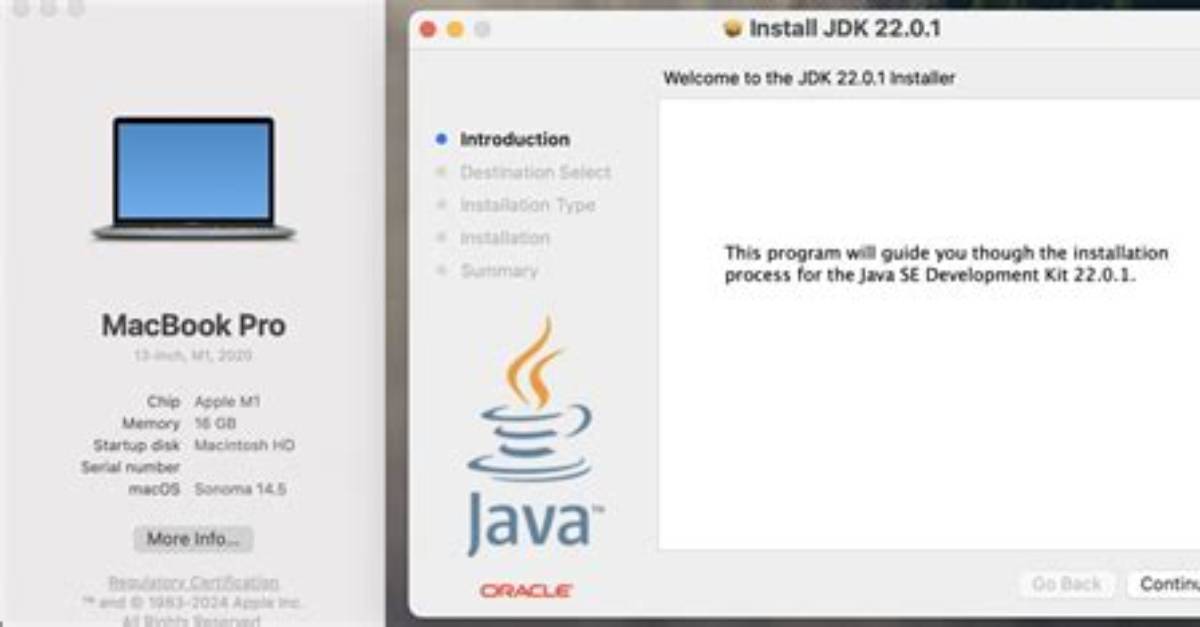
I want to install OpenJDK Java on Mac OSX and have it work alongside other JDK's since it is a newer release. Currently, I downloaded the tar.gz and placed it in my path but that is hard to maintain.
The only other install I found that do more things automatically is the install via Homebrew cask. It looks like only the current version too:
brew cask info java
Shows:
java: 13,33:5b8a42f3905b406298b72d750b6919f6
So I can install it from there, but then what? Am I stuck only with the new version?
11 Answers
Note: These solutions work for various versions of Java including Java 8 through Java 18 (the LTS version). This includes alternative JDK's from OpenJDK, Oracle, IBM, Azul, Amazon Correto, Graal and more. Easily work with Java 7, Java 8, Java 9, Java 10, Java 11, Java 12, Java 13, Java 14, Java 15, Java 16, Java 17, and even Java 18!
You have a few options for how to do the installation as well as manage JDK switching. Installation can be done by Homebrew, SDKMAN, asdf, Jabba, or a manual install. Switching can be done by JEnv, SDKMAN, asdf, Jabba or manually by setting JAVA_HOME. All of these are described below.
TL;DR - Preferred Methods of Installation
You can install Java using whatever method you prefer including SDKMAN, asdf, Homebrew, or a manual install of the tar.gz file. The advantage of a manual install is that the location of the JDK can be placed in a standardized location for Mac OSX.
However, there are easier options such as SDKMAN and asdf that also will install other important and common tools for the JVM. These two primary options are described here.
Installing and Switching versions with SDKMAN
SDKMAN is a bit different and handles both the install and the switching. SDKMAN also places the installed JDK's into its own directory tree, which is typically ~/.sdkman/candidates/java. SDKMAN allows setting a global default version, and a version specific to the current shell.
Install SDKMAN from
List the Java versions available to make sure you know the version ID
sdk list javaInstall one of those versions, for example, Java 17 LTS:
sdk install java 17-openOr java 18:
sdk install java 18-openMake Java 17 the default version:
sdk default java 17-openOr switch to 17 for the current terminal session:
sdk use java 17-open
When you list available versions for installation using the list command, you will see a wide variety of distributions of Java:
sdk list java
And install additional versions, such as JDK 11 from Amazon:
sdk install java 11.0.14.10.1-amzn
SDKMAN can work with previously installed existing versions. Just do a local install giving your own version label and the location of the JDK:
sdk install java my-local-13 /Library/Java/JavaVirtualMachines/
And use it freely:
sdk use java my-local-13
SDKMAN will automatically manage your PATH and JAVA_HOME for you as you change versions. And as a note, it installs Java versions to ~/.sdkman/candidates/java/.
More information is available in the SDKMAN Usage Guide along with other SDK's it can install and manage.
David Miller brings 15 years of experience in global economics, personal finance strategy, and market dynamics. He specializes in turning complex economic trends into actionable insights for everyday readers.
