
How to Add Android Apps and Games to Your Google Play Wishlist

Please Note: This Is a Tutorial for Inexperienced Users. Ever Wanted to Buy Something from Google Play, but Couldn't Do It Right Away (Not Enough Credit/Money...
Please note: this is a tutorial for inexperienced users.
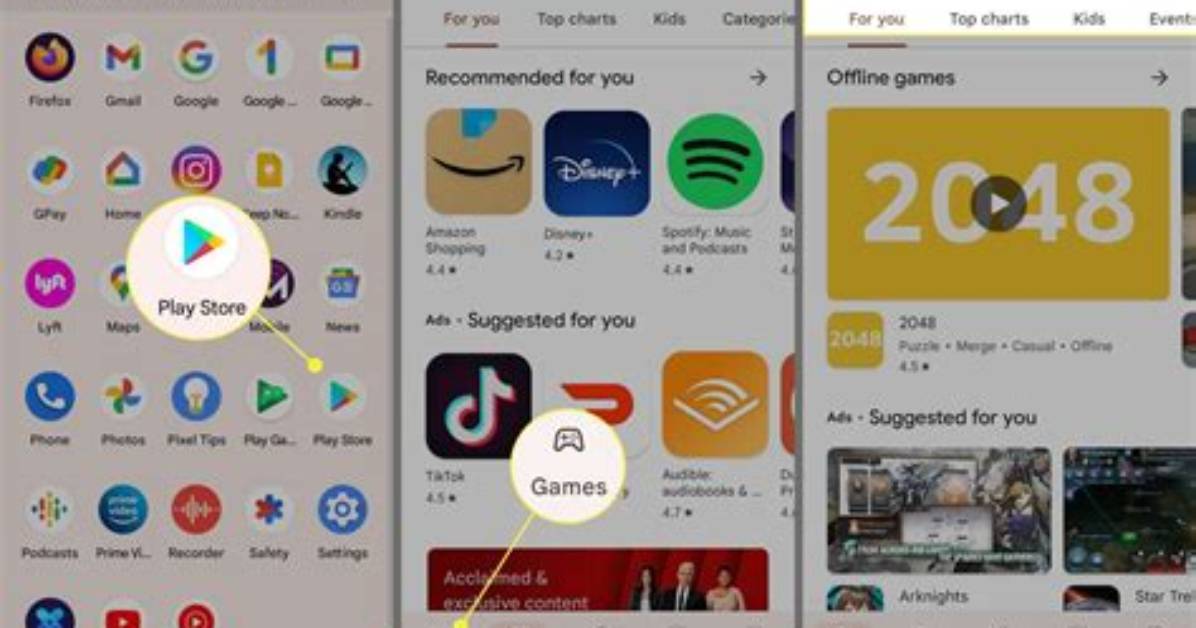
Ever wanted to buy something from Google Play, but couldn't do it right away (not enough credit/money being one of the reasons)? Well, no worries: you can save any Google Play item in a personal wishlist so you don't forget to get it later. Google Play features wishlists since almost four years ago, making it easy for users to save apps, games, music, and other content that they can't (or don't want to) download immediately on their Android phone or tablet.Adding items to your Google Play wishlist is easy. After you open the Google Play app on your Android device and start browsing for apps or other content, you'll notice a three-dot button next to each item that you're discovering. Tapping on that button brings up a few options, including adding the item to your wishlist - it's that simple. The three-dot button also shows up when you're searching for a specific app, so you can add stuff to your wishlist from the search results tab, too. Moreover, whenever you open an app's description page, you'll see a + button: this can also be used to add the respective app to the wishlist.
Must Read
Google Play's wishlist is useful not just in the case of paid content. Sometimes, if you're on a cellular connection, you may want to save data, so you add items to the wishlist, and revisit it when you can start downloading via Wi-Fi.
Maya is a hardware enthusiast who tests and reviews smart home devices, smartphones, wearables, and audio gear. She focuses on practical consumer value and build quality.
