
How to Create a Customizable Crm with Google Sheets?

In an Age Where Data Is King, Managing It in a Way That Is Both Efficient and Effective Can Set a Business Apart. Google Sheets Has Emerged as a Powerful Tool...
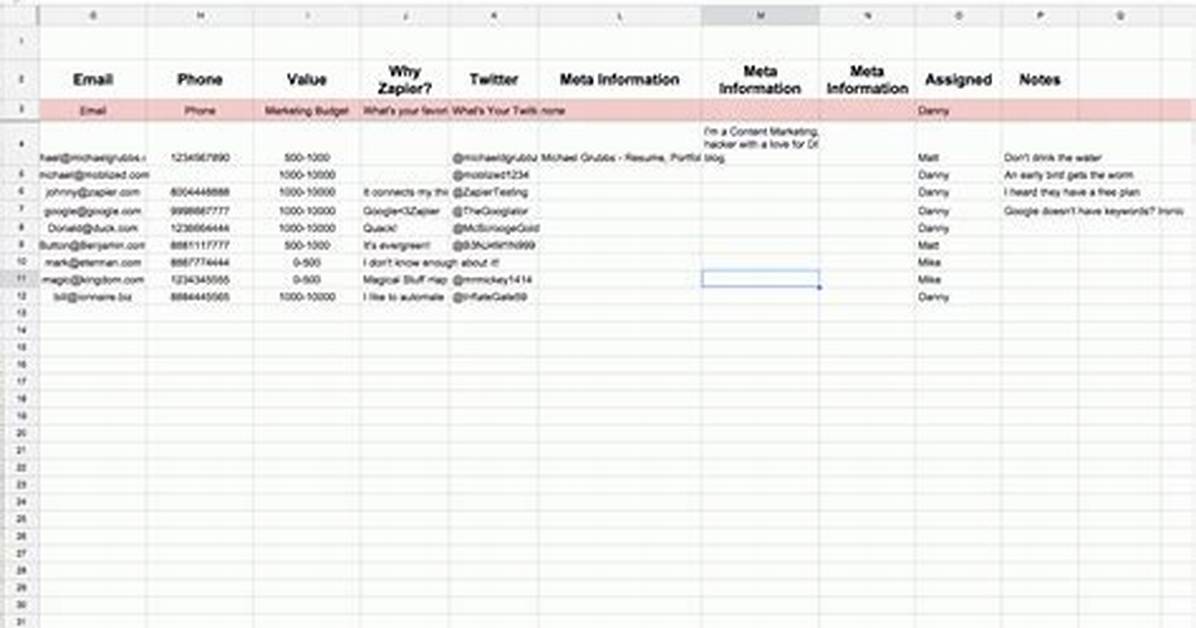
In an age where data is king, managing it in a way that is both efficient and effective can set a business apart. Google Sheets has emerged as a powerful tool for businesses looking to create a customizable Customer Relationship Management (CRM) system to ensure workflow automation. This versatile platform offers a wealth of features and integrations, making it possible to tailor a CRM solution that fits the unique needs of any business. Let's explore how to leverage Google Sheets integrations, Google Sheets tutorials, and functions like pivot tables, along with specific integrations with platforms like Microsoft Dynamics CRM, Zoho CRM, and HubSpot, to enhance your CRM capabilities. In addition, by incorporating workflow automation tools like Appy Pie Connect, businesses can enhance their CRM capabilities, ensuring that data management is not only more efficient but also significantly more effective in driving strategic decisions and fostering customer relationships.
Why Google Sheets for CRM?
Google Sheets provides an incredibly versatile and accessible platform for Customer Relationship Management (CRM) purposes. Its user-friendly interface allows for the efficient management of customer information, sales operations, and communication records. One of the key advantages of using Google Sheets is its real-time collaboration feature, enabling teams to simultaneously update and retrieve data from any location, fostering a highly responsive and interconnected work environment. Additionally, Google Sheets is compatible with a wide range of integrations and add-ons, which can automate and enhance various CRM tasks, such as data entry, analysis, and reporting.
This compatibility facilitates the seamless merging of external data sources and tools, enriching the CRM system's functionality and insights. Google Sheets Integrations with workflow automation tool is also cost-effective, offering a powerful solution for businesses seeking to optimize their customer relationship management without significant investment in specialized software. The platform's scalability and customization options further ensure that it can adapt to the evolving needs of a business, making it an ideal choice for startups and established enterprises alike.
Here is how to build a CRM with Google Sheets
Building a CRM in Google Sheets allows for a highly customizable and cost-effective solution to manage your customer relationships and sales pipeline. This process involves several key steps, from initial setup to integrating advanced functionalities. Here’s a comprehensive guide on how to do it:
Step 1: Initial Setup
- Create a New Google Sheet: Start by creating a new sheet for your CRM. This will be the central place where all your customer data will be stored.
- Define Your Structure: Determine the types of information you need to track. Common columns include Contact Name, Email, Phone Number, Company, Role, Status (Lead, Opportunity, Customer), Last Contact Date, and Next Steps.
- Customize Your View: Utilize the "Freeze" feature to keep key columns like Contact Name and Company always visible. Use color coding for different stages of the sales cycle for at-a-glance status updates.
Step 2: Add a Form for Data Entry
- Create a Google Form: Use Google Forms to collect data directly into your CRM. This is ideal for lead capture or feedback collection. Link the form to your CRM sheet so responses automatically populate your database.
Step 3: Contact Management System
- Organize Your Data: Use filters and conditional formatting in Google Sheets to manage your contacts more efficiently. Filters allow you to sort contacts, and conditional formatting can highlight key information, like leads that require follow-up.
- Data Validation: Implement data validation rules to maintain the quality and consistency of the data entered into your CRM.
Step 4: Automate Data Entry with Integrations
- Integrate Web Forms: Beyond Google Forms, integrate web forms from your website directly into your Google Sheets CRM using tools like Appy Pie Connect. This streamlines the process of capturing leads or inquiries from your website.
- Email and Calendar Integration: Use add-ons or third-party tools to sync emails and calendar events related to your contacts directly into your CRM, keeping all relevant information in one place.
Step 5: Track Interactions
- Log Interactions: Create a section or a separate tab in your Google Sheet to log interactions with contacts, such as calls, emails, meetings, and notes. This helps in maintaining a history of communications and planning follow-ups.
- Automate Interaction Logging: Explore ways to automate logging, especially for email communications, using email integration tools that connect with Google Sheets.
Step 6: Qualify Leads
- Use Web Scraping: Implement Google Sheets functions like IMPORTXML to scrape web data for lead qualification. This can enrich your CRM with additional information on leads, aiding in prioritization and follow-up strategies.
Step 7: Build an Outreach System
- Email Campaigns: Utilize Google Sheets to organize and track email campaigns. Tools like Mail Merge with Google Sheets can automate personalized outreach directly from your CRM.
- Social Media and Email Follow-Ups: Plan and monitor your social media outreach efforts and email follow-ups within Google Sheets, ensuring consistent communication across all channels.
Step 8: Sales Pipeline Management
- Visualize Your Pipeline: Create a pipeline view within Google Sheets to track deals through various stages, from initial contact to close. Use this to forecast sales and identify bottlenecks in your sales process.
- Dashboard and Analytics: Develop a dashboard using Google Sheets’ charting features to gain insights into your sales activities, such as conversion rates, average deal size, and sales cycle length.
Step 9: Refine and Scale
- Feedback Loop: Implement a regular review process to gather feedback from users of your CRM. Use this feedback to make iterative improvements, adding new features or refining existing ones to better meet your team's needs.
- Scale with Apps Script: As your needs become more complex, consider developing custom interfaces or functionalities within your CRM using Google Apps Script. This can include automated alerts for follow-ups, custom calculations for scoring leads, or even integrating AI for predictive analytics.
Sarah Jenkins is a veteran tech journalist with over 12 years of experience covering artificial intelligence, mobile innovations, and digital ethics. Her insights have appeared in leading technology publications worldwide.
