
How to Fix a Grub Boot Error: "Symbol 'Grub_Calloc' Not Found

Just Ran the Latest Batch of Updates on 20.04 (Xubuntu), and Now I'm Getting a Grub Error: Symbol 'Grub_Calloc' Not Found I'm Dropped into the 'Grub Rescue'...
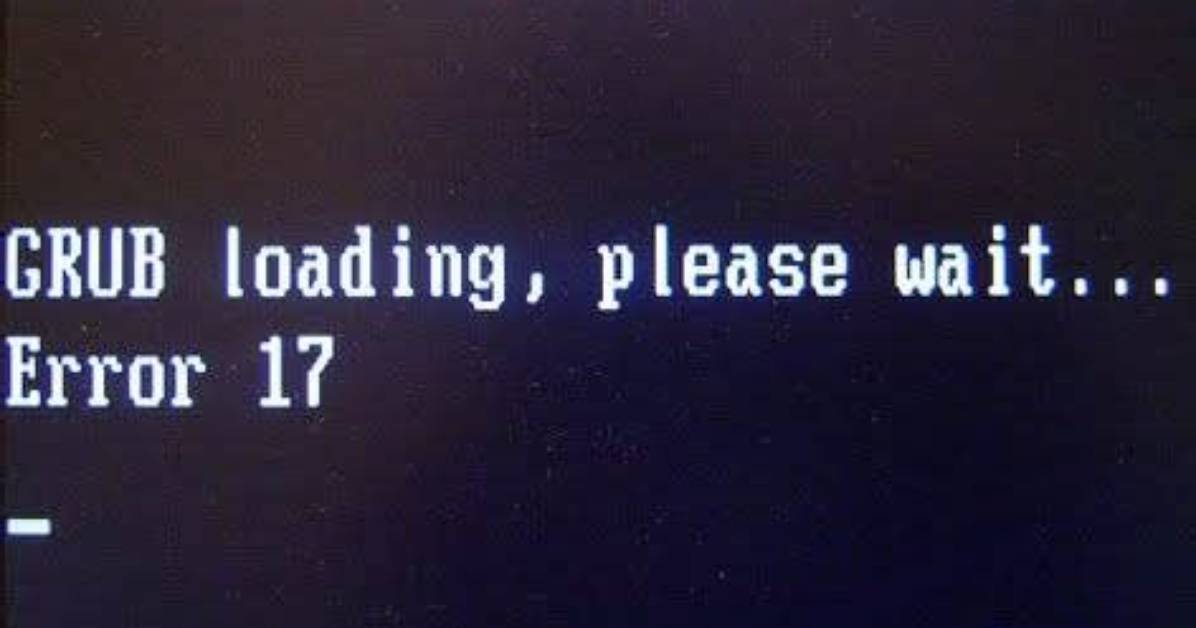
Just ran the latest batch of updates on 20.04 (Xubuntu), and now I'm getting a GRUB error:
symbol 'grub_calloc' not found
I'm dropped into the 'grub rescue' shell, but have no idea what to do there that might be useful. To me, 'symbol not found' implies some sort of build error with the grub package, but I don't really know how grub works. I noticed that this update also included 'firmware', not sure if that could be related. Is my best bet just to boot from a live CD and see if I can roll back the update to grub somehow?
Edited to add:
OK, thanks to lots of people ! Here's what I think I now understand.
On 'non-UEFI' systems, grub is installed in two separate parts. The first, most basic, part is the part that is started on bootup. But for most of it's functionality, it needs the second part. These parts must be aligned - neither part must require any functionality from the other part which is not actually there.
The visible, run-time problem occurs when these parts are not aligned, and the function grub_calloc is not supplied. It's not 100% clear to me if grub_calloc belongs in the second, larger part or the first. I would have expected the second, but the grub build system is a work of considerable art, so I don't know :).
The root cause of the problem is that the grub update has not ensured that both parts have been updated. Ideally, failure to do this should cause grub installation to fail, and the system should be reverted to a safe state. This does not happen.
This is actually still a bit of a mystery to me. All that the update needs to do by default is put each part where the current parts are, because obviously that worked. If the install locations/drives are configuration - driven, and one of these locations can't be reached, then somehow a mismatch has arisen between that configuration data and reality. This might not show up as a problem as long as no new dependency was introduced between the parts.
All flavours of solution involve reinstalling grub to ensure that the two parts are aligned. It's not actually necessary to go back to the previous version ( although that will work ), because it's not the grub runtime per se that is broken. There are numerous ways to achieve this, depending on your environment, but running the Boot-repair live disk worked for me.
It may be useful, for the purpose of avoiding such a misalignment in future, to ensure that the grub installer on your system is configured to install to the correct devices.
This update resolves some important bugs (See Ubuntu Security Notice 4432). If you have reverted grub to resolve this problem, be aware that you are exposed to these issues.
11 Answers
Using Linux Mint 19.3 bios grub setup in a simple 2 partition installation.
After GRUB2 update the machine crashed on reboot and entered rescue mode.
error: symbol 'grub_calloc' not found
To restore GRUB I booted into Linux Mint 19.3 Live USB stick and issued the following commands in the terminal:
sudo mount /dev/sda1  /mnt
sudo grub-install --root-directory=/mnt/  /dev/sda
On reboot the desktop showed up nicely.
I was in the same boat as Rick N. 2 disks but they weren't in RAID. I used this tool
I found that tool from the Ubuntu Help page
It appears to have installed some GUI features that weren't there before (this system has been CLI-only for as long as I can remember) but I'm running again, which is the important part.
Thanks to the others, here, for the guidance.
This is some of the work we did fixing this on our Azure Ubuntu 18.04 servers
Problem appears to be a failed attempt to upgrade grub. Problem happens with an unattended reboot after a security upgrade.
We then found these instructions from a comment posted on the Ubuntu bug for this problem:
Note that I modified this slightly and below is my modified version that I mention in a later comment on the bug( )
For Azure users (the same should work in any cloud, with small changes) that end up here while looking for this bug, the steps to recover are:
Deploy a recovery VM using AzCli or just attach a copy of the affected OS vm disk to a rescue VM. Once done, connected to rescue VM and:
$ sudo su -
# lsblk <-- this will identify the attached disk, usualy /dev/sdc, but can be /dev/sda or /dev/sdb
# mkdir /rescue
# mount /dev/sdc1 /rescue <-- this assumes /dev/sdc is the attached data disk
# for fs in {proc,sys,tmp,dev}; do mount -o bind /$fs /rescue/$fs; done
# cd /rescue
# chroot /rescue
# grub-install /dev/sdc <-- this assumes /dev/sdc is the attached data disk
# exit
# cd /
# for fs in {proc,sys,tmp,dev}; do umount /rescue/$fs; done
# umount /rescue
# rmdir /rescue
Now you should be able to swap back the repaired disk to affected VM.
Must Read
First attempt at a fix
We found the following Azure documentation links useful:
Ok, step by step:
Deploy a recovery VM
What sort of VM is that? Attempted creating a regular Ubuntu 18.04 LTS VM. This is what you want - to create a recovery VM that matches the servers that are broken
All normal except for connecting to an existing disk. Looks like you can't attach to a disk unless you first somehow move it from another machine (detach it) first.
attach a copy of the affected OS vm disk to a rescue VM.
To create a copy, you can take a read only snapshot of the disk and then create a new Managed Disk based on the snapshot.
The only disk you need a snapshot of is the OS disk, not the data disk.
You can create the recovery VM without a data disk, just the OS disk that automatically gets created.
You can then add the Managed Disk OS snapshot to the recovery VM as a data disk.
Then you can log into the recovery VM and follow the steps above.
All the steps completed without error - we could copy and paste the exact messages
The critical line is running grub-install you should see the following:
root@recoveryVM:/# grub-install /dev/sdc
Installing for i386-pc platform.
Installation finished. No error reported.
Then log out and stop the VM.
You can then go into the broken VM and under the Disks section of the VM select 'Swap OS Disk'.
Reddit mini thread explaining the mounts required:
James Sterling reports on renewable energy developments, climate policy, ecological conservation, and green tech innovations around the globe.
