
How to Save Chart Layouts & Indicator Templates on Tradingview

This Comprehensive Guide Will Walk You Through the Process of Saving Chart Layouts and Templates, Managing Multiple Charts, and Addressing Common Questions...
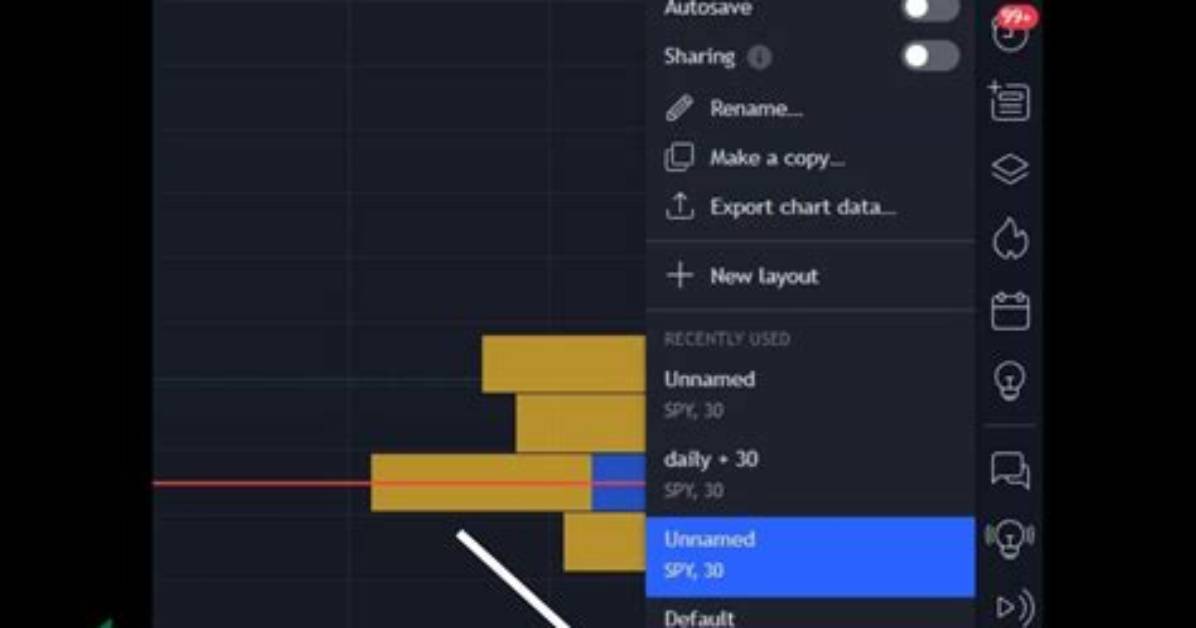
This comprehensive guide will walk you through the process of saving chart layouts and templates, managing multiple charts, and addressing common questions related to saving charts on TradingView.
Understanding Layouts vs. Templates
Layouts and templates are two similar features on TradingView that help you customize and organize your charts.
- Layouts refer to the overall configuration of a chart, including chart type, indicators, drawings, style, and background.
- Templates are used to save a specific set of indicators and timeframes applied to a chart but do not include drawings.
How to Save a Chart Layout on TradingView
Follow these simple steps to save a chart layout on TradingView:
- Open a chart and customize the settings, such as drawings and indicators
- Click the “Save” (CTRL + S) button located in the top right corner of the chart window
- You can rename the layout by clicking the arrow to the left of the search icon and then clicking rename
If you turn off autosave, your layout will not automatically update with any new changes to the indicators or drawings you make.
If you use drawing tools, ensure that you save your work when autosave is off if you wish to keep the drawings.
It’s a good practice to organize your chart layouts with descriptive names, making it easier to locate them later.
James Sterling reports on renewable energy developments, climate policy, ecological conservation, and green tech innovations around the globe.
