
How to View Your Friends Wishlist on Steam 2022

Seeing a Friend’s Wishlist on Steam Is an Interesting Feature That Will Give You an Insight into What Your Friend Really Hopes and Wants to Buy. of Course...
Seeing a friend’s wishlist on Steam is an interesting feature that will give you an insight into what your friend really hopes and wants to buy. Of course, apart from this feature, there are many others that give Steam a truly social feel. Once you put something on your wishlist, you will be informed if there are discounts whenever there’s a sale going on. This is perfect to keep tabs on the games you are interested in but how to see your friends wishlist on Steam? Here’s how to do it. Also find out how to gift a game to your friends via Steam for the holidays.
How To View Friends’ Steam Wishlist 2022
Follow these steps to find out which Steam games your friend is most excited for.
- To see your friends’ steam wishlist, all you have to do is first load the Steam app on your computer.
- Use your details to log in.
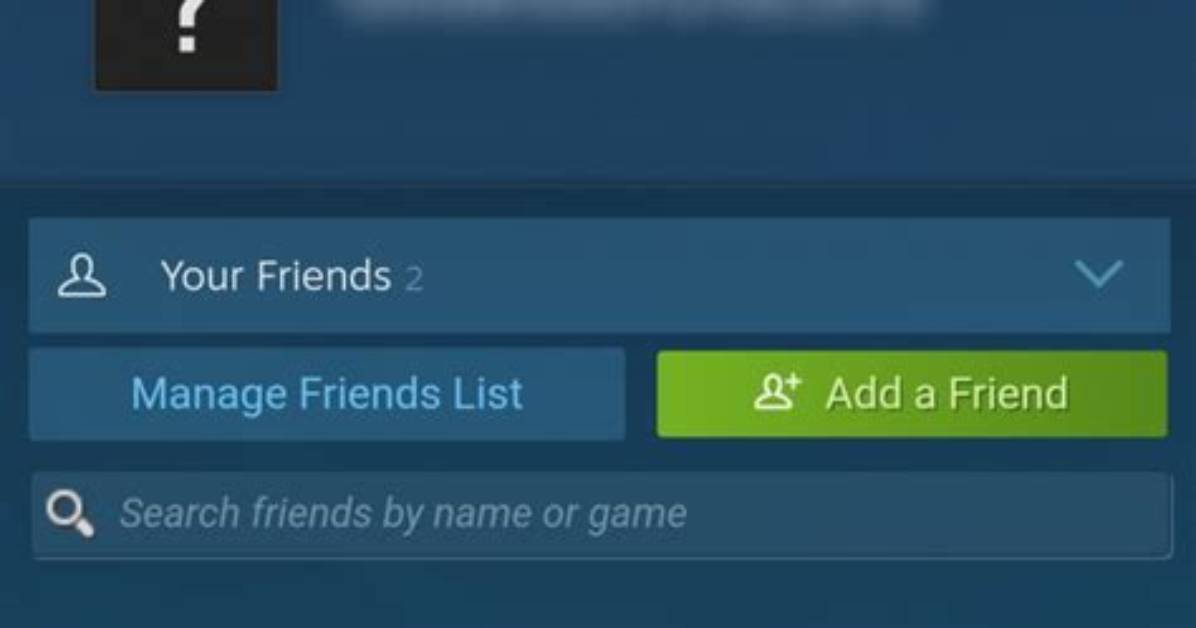
- Go to Friends and select the friend whose profile you want to view.
- Next, head over to your friend’s profile.
- You will see tabs of Games Owned, Reviews and of course, Wishlist.
- The Wishlist is what you are looking for so simply click on it.
You can view your friends’ wishlist on Steam in order to gift them something they want. It can be a sweet surprise – you don’t even have to ask them about the game he/she wants to play. It will be listed right there on their profile. This will come in real handy during the holiday season. Plus, you can sort the wishlist as per the price, ranked order, top selling, date added and more. Based on all of these filters, you can make your decision.
So, this is how to view your friend’s wishlist on Steam. But note that if your friend has set their profile to private, then you cannot view their Steam wishlist. It has to be public for this to work.
Also Read | How to Hide Games on Steam from Friends?
How to Gift a Game on Steam for Christmas 2022
- Once you have picked a game from your friend’s wishlist, simply click on Add to Cart on the game’s section.
- Next, select Purchase as a Gift on your shopping cart page.
- Choose the friend you want to gift it to and click on Continue.
- You can even go the extra mile by adding a bit of personalization to your gift. You can add the recipient’s first name, the emotional message and add your sentiment and signature.
- Proceed with the payment and go ahead and gift it to your friend.
That’s it. This is how to gift a game on Steam. With this, you can make the game show up in your friend’s inventory immediately. The next time your friend opens up Steam, they might be surprised (or even shocked) to see it there. On your end, you will get an email receipt. You can verify if your friend got the gift by checking “Manage Gifts and Guest Passes” under Games.
Marcus Vance is a cybersecurity auditor and technology writer dedicated to educating the public about online safety, data privacy regulations, enterprise security, and emerging cyber threats.
