
Ubuntu 20.04 Server Not Recognising Ethernet Connection

I Have an Ubuntu 20.04 Server. When Installing I Connected an Ethernet Cable to the Motherboard Ethernet Port. I Am Certain That It Is Connected to the...
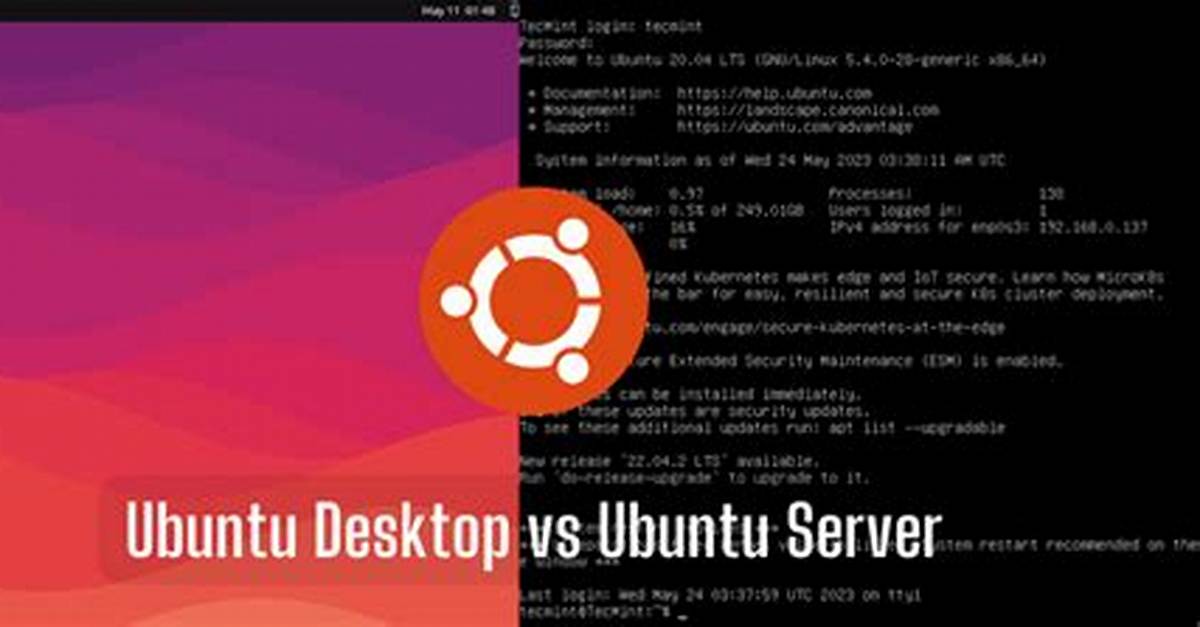
I have an ubuntu 20.04 server. When installing I connected an ethernet cable to the motherboard ethernet port. I am certain that it is connected to the internet but it won't connect.
I have tried troubleshooting:
$ lspci | grep -i eth yields:
02:00.0 Ethernet controller: Realtek Semiconductor Co., RTL8125 2.5GbE Controller (rev 04)
$ sudo lshw -c network yields:
*-network UNCLAIMED
    description: Ethernet controller
    product: RTL8125 2.5GbE Controller
    vendor: Realtek Semiconductor Co., Ltd.
    physical id: 0
    bus info: pci@0000:02:00.0
    version: 04
    width: 64 bits
    clock: 33MHz
    capabilities: pm msi pciexpress msix vpd cap_list
    configuration: latency=0
    resources: ioport:3000(size=256) memory:a1100000-a110ffff memory:a1110000-a1113fff
My /etc/network/interfaces:
# The loopback network interface
auto lo
iface eth0 lo inet loopback

# The primary network interface
iface eth0 inet dhcp
/etc/netplan/01-netcfg.yaml:
# This is the network config written by 'subiquity'
network:
  version: 2
  renderer: networkd
  ethernets:
    ens33:
      dhcp4: true
I have tried several options (this and that) but neither work for me. Am I missing something?
1 Answer
Allright, so as pointed out by @Silbee, the kernel did not support my ethernet adapter. So I figured I should write a step by step guide for others experiencing the same problems as I did.
Step 1: (Download kernel files)
I downloaded the following files in order to upgrade the kernel:
Then move to a USB drive (remember, we don't have the convenience of internet to do everything for us...)
example folder structure: D:/kernel/
You should have 4 files in the kernel folder on your usb drive.
Step 2: (Mount USB)
- Create a folder for mounting your USB:
$ mkdir /media/usb - Find USB drive address:
$ lsblk - Mount USB drive in folder:
sudo mount /dev/sdb1 /media/usb(my USB drive's address wassdb1)
Step 3: (Install new kernel)
To install:
Move to the kernel folder
$ cd /media/usb/kernel
And install the new kernel:
$ sudo dpkg -i *.deb
Step 4: (find ethernet interface)
If all has gone well as it did for me you should find a new interface when running the following command: $ ip a
For a more detailed guide on this, please refer to this answer
Hope it helped!
Note to comment of Silbee: Mind you, switching to the HWE stack kernel will severely limit LTE support, as they only come with 6 months worth of security updates.
James Sterling reports on renewable energy developments, climate policy, ecological conservation, and green tech innovations around the globe.
