
Understanding Nintendo Switch Error Code 2124-8006 and How to Resolve It

Insight into Nintendo Switch Error Code 2124-8006 Encountering Issues While Linking Your Nintendo Account to Your Nintendo Switch Console Accompanied by Error...
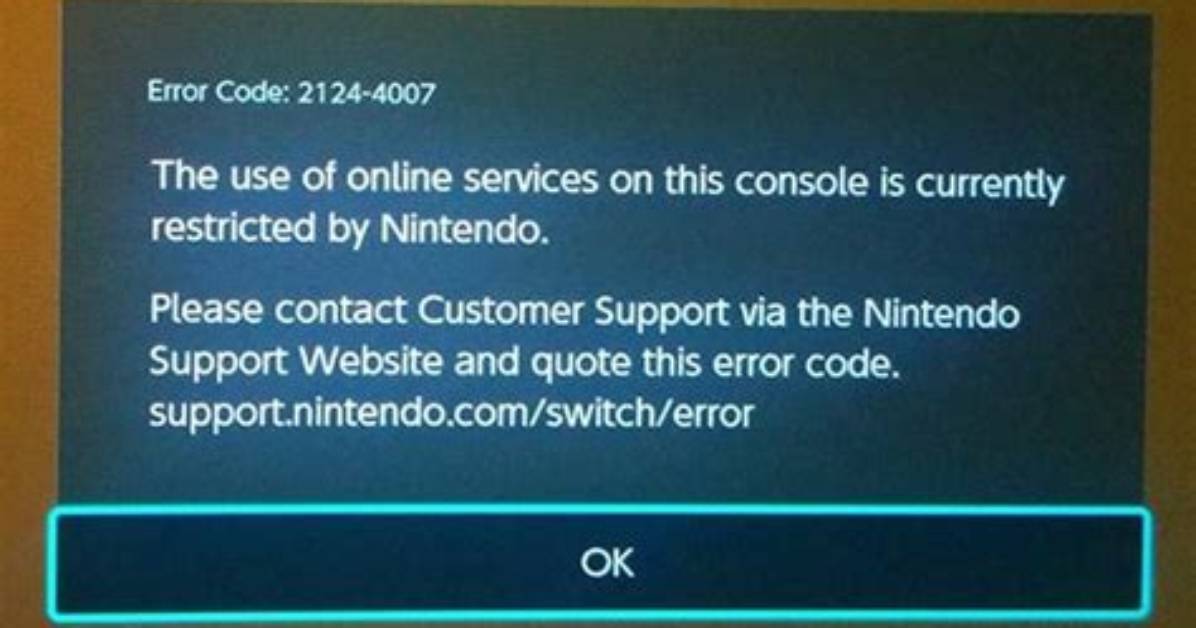
Insight into Nintendo Switch Error Code 2124-8006
Encountering issues while linking your Nintendo Account to your Nintendo Switch console accompanied by error codes 2124-8006 or 2124-8007 often indicates underlying concerns that require attention. One probable cause is related to DNS configuration problems or connection timeouts, which could result from a sluggish internet connection, wireless disturbances, or weak signal strength from the router. In such scenarios, relocating closer to the router or resetting it may enhance the connection quality.
It’s important to note that utilizing a Nintendo Switch dock lacking a LAN port necessitates a USB LAN adapter for establishing a wired internet connection. As for Nintendo Switch Lite users, an approved accessory like the Dual USB PlayStand from HORI can facilitate the connection of a USB LAN adapter. While these remedies may be effective for some users, persisting error codes may indicate underlying issues that require intervention from Nintendo Support.
Rectifying Nintendo Switch Error Code 2124-8006
The licensed Dual USB Play Stand by HORI is a viable accessory enabling the connection of a USB LAN adapter to a Nintendo Switch Lite. To address error codes 2124-8006 or 2124-8007 encountered during the linking of a Nintendo Account to a Nintendo Switch console, the culprit typically lies within DNS network settings or an unstable internet connection leading to connection timeouts.
-
To troubleshoot the issue, an initial step involves rebooting the Nintendo Switch console by pressing and holding the power button for at least 3 seconds, accessing Power Options, and selecting Restart. Power cycling your network device, such as a router or modem, may also prove beneficial.
-
Attempting to alter DNS settings by setting the alternate DNS to 8.8.4.4 or 1.0.0.1 and the primary DNS to 8.8.8.8 or 1.1.1.1 could help alleviate the issue. Upon modification, save the changes and click OK. For Wi-Fi router adjustments, navigate to homepage settings through your web browser, access Network, Wireless, Radio, and configure the Channel Bandwidth to 40 MHz or 20 MHz for non-Spectrum users. Some ISP users may opt for auto mode.
-
Optimizing connectivity entails positioning the router in an open or elevated area to reduce congestion and ensure seamless connectivity. Switching from 2.4GHz to 5GHz connectivity on the Switch for Wi-Fi users potentially yields better outcomes.
-
If relying on a mobile hotspot for internet connectivity, consider switching to an alternative hotspot or network.
-
Check for available firmware updates for your router or modem. Updating the firmware might resolve compatibility issues.
-
In case the error code persists despite attempting the above solutions, contacting Nintendo’s customer support for further guidance is advisable. They can offer additional troubleshooting steps or advise on potential console repairs.
James Sterling reports on renewable energy developments, climate policy, ecological conservation, and green tech innovations around the globe.
