
Windows Batch File Rename

I Have Some File Such as Aaa_A001. Jpg, Bbb_A002. Jpg, Ccc_A003. Jpg in Windows 7 and I'm Trying to Use Batch to Rename These File to A001_Aaa. Jpg, A002_Bbb...
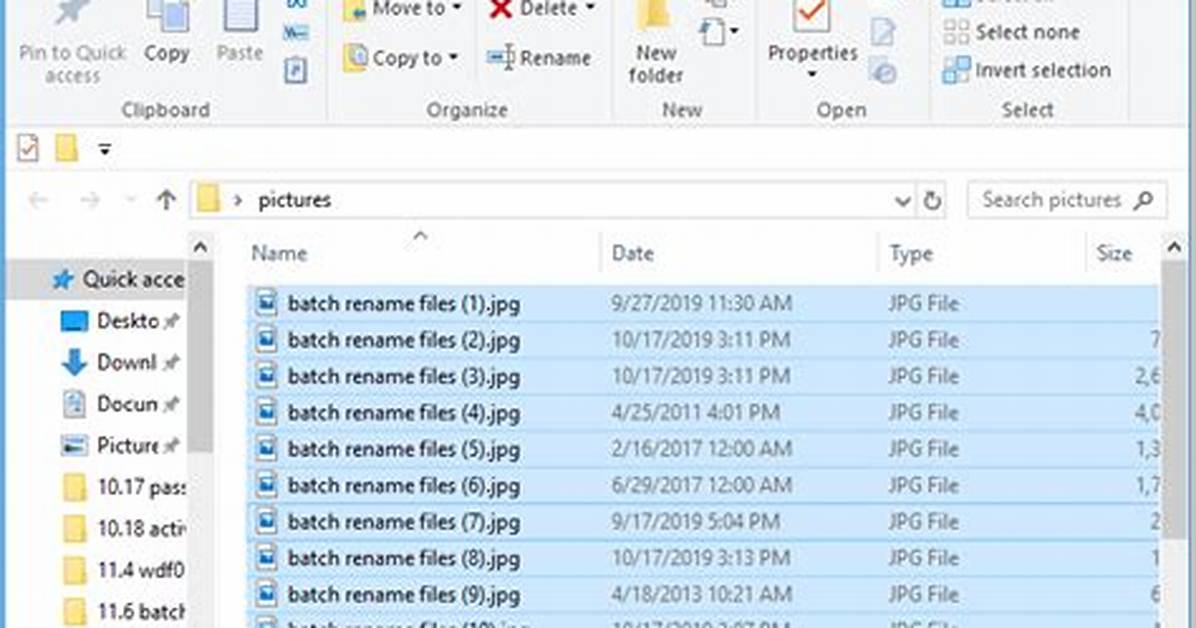
I have some file such as AAA_a001.jpg, BBB_a002.jpg, CCC_a003.jpg in Windows 7
and I'm trying to use batch to rename these file to a001_AAA.jpg, a002_BBB.jpg, a003_CCC.jpg.
Just to swap the content between _.
I have been searching for a while, but still don't know how to do this. Can anyone help? Thanks.
8 Answers
Use REN Command
Ren is for rename
ren ( where the file is located ) ( the new name )
example
ren C:\Users\&username%\Desktop\aaa.txt bbb.txt
it will change aaa.txt to bbb.txt
Your code will be :
ren (file located)AAA_a001.jpg a001.AAA.jpg

ren (file located)BBB_a002.jpg a002.BBB.jpg

ren (file located)CCC_a003.jpg a003.CCC.jpg
and so on
IT WILL NOT WORK IF THERE IS SPACES!
Hope it helps :D
@echo off
pushd "pathToYourFolder" || exit /b
for /f "eol=: delims=" %%F in ('dir /b /a-d *_*.jpg') do (
  for /f "tokens=1* eol=_ delims=_" %%A in ("%%~nF") do ren "%%F" "%%~nB_%%A%%~xF"
)
popd
Note: The name is split at the first occurrence of _. If a file is named "part1_part2_part3.jpg", then it will be renamed to "part2_part3_part1.jpg"
as Itsproinc said, the REN command works!
but if your file path/name has spaces, use quotes " "
example:
ren C:\Users\&username%\Desktop\my file.txt not my file.txt
add " "
ren "C:\Users\&username%\Desktop\my file.txt" "not my file.txt"
hope it helps
I am assuming you know the length of the part before the _ and after the underscore, as well as the extension. If you don't it might be more complex than a simple substring.
cd C:\path\to\the\files
for /f %%a IN ('dir /b *.jpg') do (
set p=%a:~0,3%
set q=%a:~4,4%
set b=%p_%q.jpg
ren %a %b
)
I just came up with this script, and I did not test it. Check out this and that for more info.
IF you want to assume you don't know the positions of the _ and the lengths and the extension, I think you could do something with for loops to check the index of the _, then the last index of the ., wrap it in a goto thing and make it work. If you're willing to go through that trouble, I'd suggest you use WindowsPowerShell (or Cygwin) at least (for your own sake) or install a more advanced scripting language (think Python/Perl) you'll get more support either way.
I rename in code
echo off

setlocal EnableDelayedExpansion

for %%a in (*.txt) do (
    REM echo %%a
    set x=%%a
    set mes=!x:~17,3!

    if !mes!==JAN (
        set mes=01
    )

    if !mes!==ENE (
        set mes=01
    )

    if !mes!==FEB (
        set mes=02
    )

    if !mes!==MAR (
        set mes=03
    )

    if !mes!==APR (
        set mes=04
    )

    if !mes!==MAY (
        set mes=05
    )

    if !mes!==JUN (
        set mes=06
    )

    if !mes!==JUL (
        set mes=07
    )

    if !mes!==AUG (
        set mes=08
    )

    if !mes!==SEP (
        set mes=09
    )

    if !mes!==OCT (
        set mes=10
    )

    if !mes!==NOV (
        set mes=11
    )

    if !mes!==DEC (
        set mes=12
    )

    ren %%a !x:~20,4!!mes!!x:~15,2!.txt

    echo !x:~20,4!!mes!!x:~15,2!.txt

)
The PowerShell way works for me and easier to understand and change. However, got errors like rename-item : Source and destination path must be different until I changed it a bit.
To rename files of the folder only:
dir | Where-Object {$.Name -match 'replaceMe'} | Rename-Item -NewName { $.Name -replace 'replaceMe','myNewText' }
To rename files of the folder and sub folders recursively:
Get-ChildItem -Recurse | Where-Object {$.Name -match '.Core.'} | Rename-Item -NewName { $.Name -replace '.Core.','.Framework.' }
You can try this one code:
echo off
cd D:\TEMP
for %%A IN (*.jpg) do (
 call :dothings "%%A"
)
cd D:\2
goto :eof

:dothings
set A=%1
set P=%A:~1,12%
set Q=%A:~14,4%
set B="%Q% %P%.jpg"
ren %a% %b%
goto :eof
it will rename for example "Untitled-227 1965.jpg" to "1965 Untitled-227.jpg"
I found this solution via PowerShell :
dir | rename-item -NewName {$_.name -replace "replaceME","MyNewTxt"}
This will rename parts of all the files in the current folder.
Chloe Bennett explores the intersection of pop culture, streaming entertainment, digital trends, and contemporary lifestyle. Her weekly commentary reaches thousands of culture enthusiasts.
